Android Auto Connection Issues? Your Car’s Software Needs
 James Whitfield
3 min read
James Whitfield
3 min read
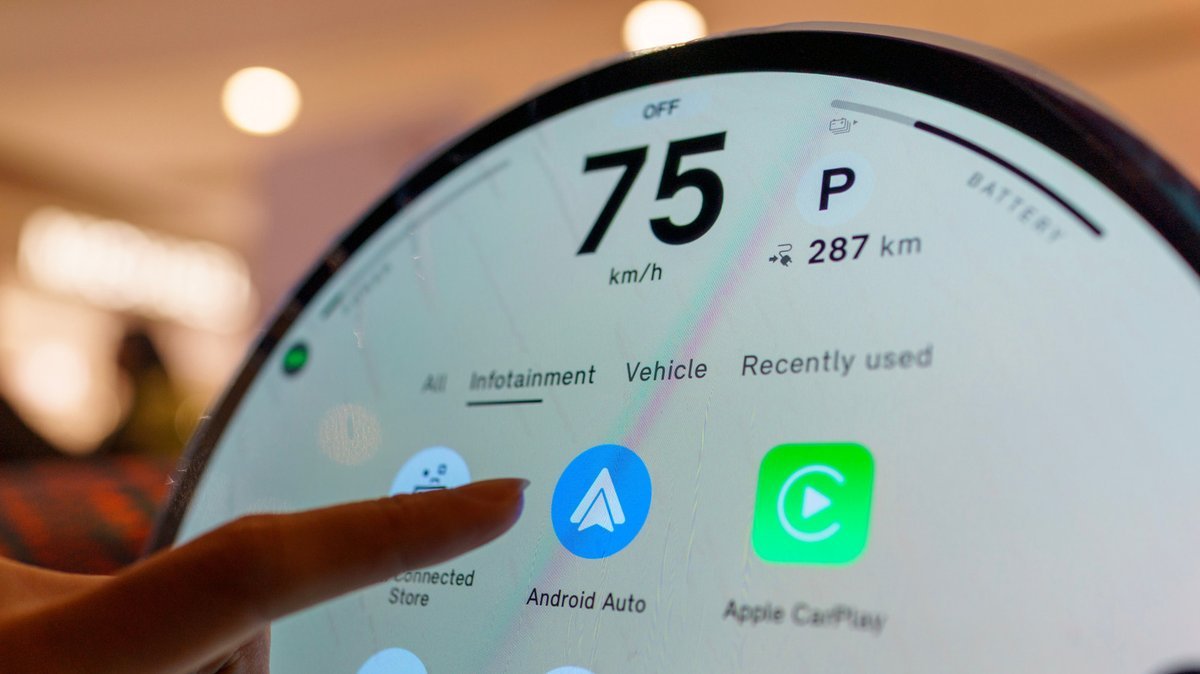
Android Auto connection problems often lead users to troubleshoot their phones first, but the real culprit may be hiding in your vehicle's dashboard. While the typical fixes involve inspecting cables, restarting devices, and ensuring Android Auto is current, overlooking your car's infotainment system software can leave you stuck.
Google recommends checking your car's infotainment system software as part of the troubleshooting process. If you're using an aftermarket Pioneer or Kenwood unit, visiting the manufacturer's website to check for firmware updates is essential. Since Android Auto depends on both your phone and vehicle working in harmony, focusing solely on the phone means missing half the equation. If standard phone-side fixes—changing cables, reconnecting, or restarting—haven't resolved the issue, your vehicle's software becomes the next logical place to investigate.
Automakers have recognized this connection and begun rolling out infotainment updates specifically designed to improve Android Auto performance. Hyundai's February 2026 update for ccNC-equipped vehicles in Europe included enhanced wireless Android Auto and Apple CarPlay connectivity, faster reconnection when phones become unresponsive, and automatic restoration following restarts. Chevrolet takes an even more direct approach, listing updates to both phone and vehicle software as the first troubleshooting step when Android Auto fails to connect on applicable models.
The process for updating your car's infotainment system varies significantly depending on the manufacturer and model. Some systems can download updates directly through Wi-Fi, while others require a USB drive or SD card. Many manufacturers also offer dealer installation as an option. Uconnect systems, for example, allow compatible vehicles to connect to Wi-Fi through the vehicle's settings menu. Because there's no universal update method, your first step should be visiting your car manufacturer's website and following their specific instructions. If the process requires your VIN or model information, provide it. When instructions are unclear or the manufacturer specifies dealer installation, taking your vehicle to an authorized dealer is safer than attempting the update independently.
However, a firmware update isn't a guaranteed fix for every Android Auto problem. If your connection issues began immediately after a phone or Android Auto update, check Google's Android Auto Known Issues page first. Google has recently addressed connection problems affecting certain Pixel and Samsung devices and may still be investigating other compatibility issues. This timing can help you determine whether your phone or car deserves troubleshooting priority. For wired Android Auto connections, Google currently advises using a quality cable under 3 feet in length and verifying that Android Auto is enabled in your infotainment system.
It's also important to understand that firmware updates have limitations. Not all infotainment systems can be upgraded to add Android Auto support if the hardware didn't originally include it. Uconnect systems, for instance, cannot be simply upgraded to add Android Auto or CarPlay functionality. Only Uconnect 5 and select Uconnect 4 and 4C systems include both features. Updating your car's software should be viewed as one troubleshooting step among many, not as a guaranteed solution. If Android Auto was previously working, standard phone troubleshooting has failed, and newer infotainment software is available, an update is worth attempting before scheduling a service appointment.