
Give Your Old Router a Second Life Instead of Tossing It
 James Whitfield
4 min read
James Whitfield
4 min read
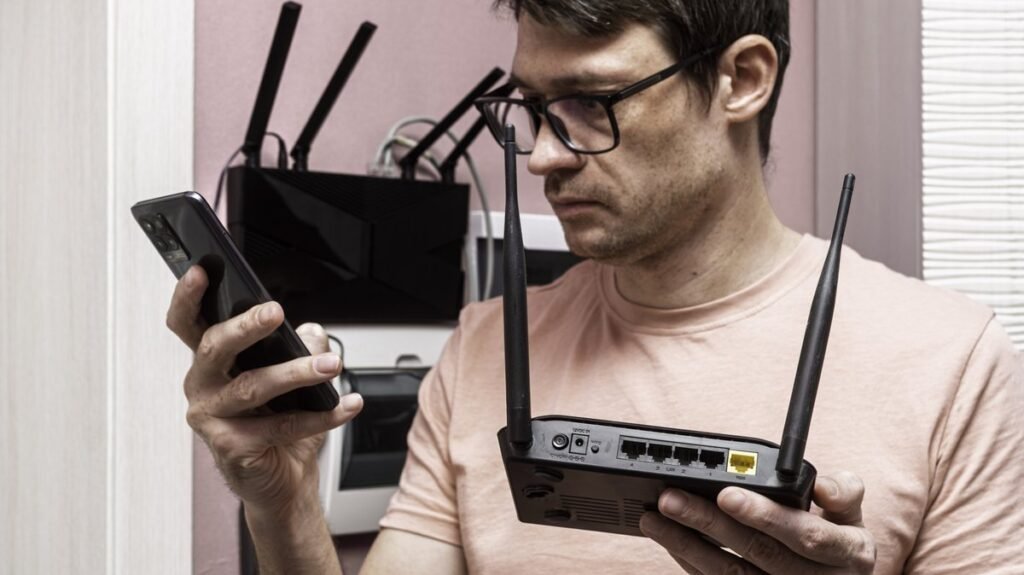
Rather than discarding an aging router when you upgrade to a newer model, you can breathe new life into the device by reassigning it to a different role on your network. Since fundamental networking principles have remained largely unchanged over the past two decades, older routers retain plenty of utility even if they lack the latest Wi-Fi standards or security features. Repurposing your old equipment not only saves money but also reduces electronic waste.
One of the most practical uses for a retired router is converting it into a Wi-Fi extender or access point to improve coverage in areas where your primary router's signal weakens. You have two configuration options: a wired connection, which provides stable performance but requires running an Ethernet cable back to your main router, or a wireless setup that doesn't need additional cabling but consumes some of the secondary router's bandwidth.
When setting up a wireless extender, avoid broadcasting identical Wi-Fi signals from both routers simultaneously, as this creates interference and degrades performance. Instead, configure your old router to transmit only on the 2.4GHz frequency band while disabling that same band on your newer router. This approach works well because 2.4GHz signals penetrate walls more effectively, while modern Wi-Fi improvements have focused on higher frequencies like 5GHz and 6GHz. Most router admin panels include wireless repeater or bridge functionality—sometimes labeled as WDS bridging—that simplifies this setup. Be aware that wireless repeater mode reduces the actual speeds available to devices connected to the secondary router since it must use part of its capacity to communicate with the primary unit.
Some router manufacturers have developed proprietary mesh systems that allow older models to integrate with newer ones. Asus routers featuring AiMesh technology, for example, can combine different models into a single unified network, provided both devices are from the same product family. If you haven't yet purchased your replacement router, this compatibility feature is worth considering.
If your new router lacks sufficient Ethernet ports for devices like gaming consoles, computers, or smart televisions, your old router can function as a network switch without requiring a separate purchase. A dedicated network switch typically costs between ten and twenty dollars, making this repurposing option economically sensible. Setup is straightforward: connect an Ethernet cable from your primary router's LAN port to one of the old router's LAN ports, then plug your devices into the remaining available ports on the older unit. Avoid connecting anything to the WAN port. Most routers include an Access Point or Switch mode within their administrative settings, though you may need to manually disable the DHCP server, firewall, and NAT functions if these modes aren't available. As with the repeater setup, disable wireless capabilities on the old router if you only intend to use its Ethernet ports.
Many routers feature USB ports that often go unnoticed but offer additional functionality. Connecting a printer to this port transforms your router into a wireless print server, allowing you to send print jobs from any networked device—a useful workaround for older printers lacking built-in Wi-Fi. Similarly, attaching an external hard drive or USB flash drive converts your router into a basic network storage device accessible from anywhere on your network. While this approach costs far less than purchasing dedicated network-attached storage (NAS) equipment, it lacks the reliability features and backup capabilities that proper NAS devices provide. Additionally, router USB ports typically offer limited speed, so performance expectations should remain modest. Access your router's administrative panel to configure USB device sharing settings for optimal results.
Modern routers often support VPN functionality, but activating this feature routes all network traffic through the encrypted tunnel, which can drain battery life on mobile devices if enabled system-wide. Repurposing an older router as a dedicated VPN client solves this problem elegantly. Configure the old router to operate as an access point connected to your primary router, then enable VPN settings within its administration panel and enter your VPN credentials. This arrangement allows you to connect to the VPN network selectively without forcing all devices to use it constantly. Setup procedures vary depending on your VPN provider and router manufacturer, but the general process remains consistent across most platforms.
For users seeking maximum flexibility, installing custom firmware represents the ultimate repurposing option. Routers are essentially stripped-down computers running lightweight operating systems designed solely for network routing. When manufacturers cease providing firmware updates or when standard software proves too limiting, open-source communities have developed alternative operating systems like OpenWRT, DD-WRT, and FreshTomato that replace manufacturer software with more versatile alternatives. These custom platforms enable installation of third-party applications, greater device control, and often simplify configuration of the repurposing options mentioned above. The primary limitation is that not all router models receive support from these projects, requiring you to verify compatibility with your specific device before attempting installation.